Here's exactly why it happens, how it plays out differently across platforms, and what actually helps.
The Core Problem: Same Letters, Different Positions
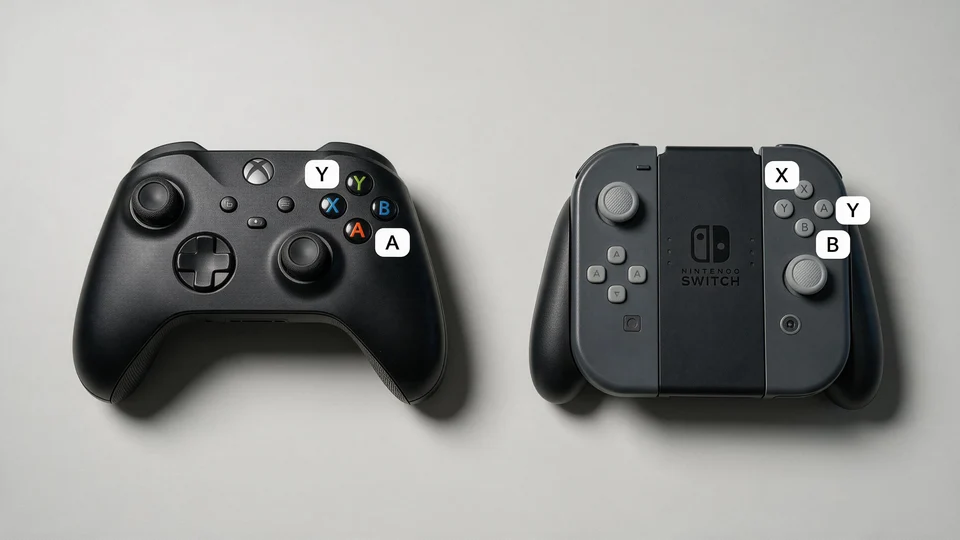
On an Xbox-style controller, the layout runs like this: A sits at the bottom, B on the right, X on the left, and Y on top.
Nintendo flips it. On a Switch controller, B is at the bottom, A is on the right, Y is on the left, and X is on top.
Notice what didn't change: it's still four buttons labeled A, B, X, and Y in both cases. What changed is which physical position each letter occupies. If you've spent enough hours on one system, your thumb learns a position, not a letter you press "the bottom button" to confirm or jump, not consciously "the button labeled A." That's exactly why switching systems trips people up even when they understand both layouts perfectly well on paper: the muscle memory is tied to a spot on the controller, and that spot means something different depending on which system you learned it on.
This isn't a minor issue that only matters in slow-paced menus, either. It shows up hardest in moments where you don't have time to think quick-time events, combo inputs, dodges, dialogue choices, and fast menu navigation are exactly where a half-second of wrong-button hesitation actually costs you.
Why the On-Screen Prompt Doesn't Always Match Your Controller
Here's where it gets more complicated: the button prompt shown on screen is controlled by the game or platform, not by whatever letters happen to be printed on your specific controller.
A large number of Windows PC games are built around XInput, a controller standard closely associated with Xbox's layout. When a game detects a controller running in XInput mode, it commonly shows Xbox-style A/B/X/Y prompts on screen, regardless of what controller is actually plugged in. This means it's entirely possible to play a PC game with a Nintendo-style controller, have every input work correctly, and still see Xbox prompts the whole time.
Steam Input adds another layer to this. It can translate signals from many different controller types so games can understand them, which genuinely helps compatibility but it doesn't guarantee the on-screen icons will match your controller's actual layout. Some games are smart enough to detect your original controller type and show matching prompts. Others simply receive the translated Xbox-style signal and display Xbox icons no matter what you're actually holding.
The practical result is that you can end up in any of these situations: everything matches perfectly, your buttons are labeled correctly but the on-screen prompt doesn't match, your inputs are remapped but the game still shows the original icon, or the controller works fine while the screen shows something that looks completely wrong. A confusing prompt doesn't necessarily mean anything is broken it often just means the game is displaying icons for a different input profile than the one you're physically holding.
How Each Platform Handles This Differently
PC and Steam
Because XInput is so widely supported, Windows games often default to showing Xbox-style prompts even for non-Xbox controllers. Steam Input can recognize other controller types and apply per-game translation, but that flexibility means your actual button mapping could be coming from three different places at once: the controller itself, Steam Input's translation layer, or the individual game's own settings.
Nintendo Switch
Switch games are built natively around Nintendo's ABXY arrangement, so a Switch-focused controller will typically have A on the right and B on the bottom to match. The system does support remapping on compatible controllers, but it's worth understanding that software remapping changes what a button does, not what letter is physically printed on it so a remapped controller can still be visually confusing even after the inputs themselves are fixed.
iPhone and iPad
Controller support varies significantly by individual game rather than being a single consistent experience. Some games display Xbox-style prompts, some use generic icons, and some don't show controller prompts at all. Before assuming a controller is misbehaving on iOS, it's worth confirming the specific game actually supports external controllers in the first place.
Android
This is the least consistent of the major platforms, largely because different games expect different input standards. Some native Android games work fine with standard HID input, while cloud gaming services built around PC or Xbox often expect an Xbox-style controller profile specifically. Using the wrong mode can cause reversed buttons, missing vibration, unresponsive menus, wrong prompts, or the controller not being detected at all and a successful Bluetooth pairing only confirms your phone can see the controller, not that every game will interpret its inputs correctly.
Cloud Gaming and Remote Play
Cloud platforms add a further layer of disconnect, since the game itself is running on a remote console or PC rather than your local device. Xbox Cloud Gaming generally shows Xbox-style prompts because the game is genuinely running in an Xbox environment a Nintendo-style controller will typically still work, but the screen keeps showing Xbox positions regardless. Remote play from a specific console tends to preserve that console's prompt style no matter what screen you're actually viewing it on.
When Remapping Helps, and When It Backfires
Remapping is genuinely useful when you want a specific physical button to consistently perform the same action no matter what game or system you're using for comfort, accessibility, or simply personal preference. The trouble starts when more than one remapping layer is active simultaneously.
Modern setups can easily stack several layers without you realizing it: controller-level mapping, a companion app, Steam Input, in-game control settings, operating system-level settings, and cloud-service translation can all potentially touch the same buttons. If you swap A and B at the controller level and then separately enable a "Nintendo-style" toggle somewhere else in the chain, you can end up double-reversing the buttons right back to where they started, now with no clear idea of why.
The most reliable fix is to use exactly one remapping layer at a time. Reset the controller's own profile, any Steam Input layout, and in-game settings back to default before making any changes, then adjust buttons in a single place and actually test the result before adding another layer on top.
It's also worth remembering that remapping only changes the input signal it never changes the physical letter printed on the button. A remapped controller can work perfectly while still being genuinely hard to read at a glance, since the screen might say "Press A" while the button that actually performs that action is physically labeled B.
What to Actually Check Before Buying a Multi-Platform Controller
If you regularly move between PC, Switch, mobile, and cloud gaming, a few specific things matter more than a long compatibility list on the box:
-
Check platform support individually, not as a bundle. Windows compatibility, Switch compatibility, iOS/Android support, and Xbox Cloud Gaming support are separate claims an Xbox-style layout doesn't automatically mean the controller works with an actual Xbox console.
-
Match the physical ABXY layout to your main platform. If most of your time is spent on Windows or Xbox Cloud Gaming, an Xbox-style layout will generally match on-screen prompts. If Switch is your primary platform, a Nintendo-style layout will feel more consistent with the system's own menus.
-
Understand the input modes offered. XInput, Switch mode, HID, Bluetooth, 2.4GHz wireless, and USB wired can each behave differently in terms of button prompts, vibration, and how reliably a game detects the controller at all.
-
Know where remapped profiles are actually saved. Onboard memory keeps your layout with the controller as you move between devices; software-based profiles often only apply to one operating system, which matters a lot if you switch platforms frequently.
Frequently Asked Questions
Why do Xbox and Nintendo Switch controllers use the same letters in different places?
The two companies simply standardized on different physical arrangements for their ABXY layout. Both use the same four letters, but Xbox places A at the bottom and B on the right, while Nintendo places B at the bottom and A on the right, effectively mirroring the two.
Why does my Switch-style controller show Xbox button prompts on PC?
Many Windows games are built around XInput, a standard closely tied to Xbox's layout. When a game detects a controller in XInput mode, it commonly displays Xbox-style prompts regardless of the controller's actual physical layout, even though the inputs themselves work correctly.
Does remapping my controller fix the confusing prompts?
Remapping changes what a button does, but not the letter physically printed on it, and not necessarily what the game displays on screen. It can make gameplay more comfortable, but it can also make the setup harder to read if the visual label, physical position, and on-screen prompt all end up pointing in different directions.
What's the simplest way to reduce this confusion?
Choose a controller whose physical ABXY layout matches the platform you use most. If you frequently switch between Xbox-style and Nintendo-style systems, look specifically for a controller with reliable per-platform profile storage rather than relying on layered software remapping across multiple apps and settings.
The Bottom Line
The confusion between Xbox and Nintendo Switch button layouts isn't a sign that something's broken it's the predictable result of two companies mirroring the same four letters onto opposite physical positions, compounded by how differently PC, mobile, and cloud platforms each choose to display prompts. Understanding where the mismatch actually comes from physical position versus printed letter versus on-screen icon makes it much easier to diagnose what's actually happening the next time your thumb goes to the wrong button, and to make a more informed choice the next time you're shopping for a controller that needs to work well across more than one platform.